
Web Component widgets with Preact
Packaging a Preact + Zustand widget as a Web Component that drops into any website.
Motivation
One project I really enjoyed was building an SDK with Preact and shipping it as Web Component widgets.
Our customers were real estate agents, and their websites were all over the place. WordPress with many plugins, old themes with aggressive global CSS, page builders that cloned DOM nodes at random, and sometimes sites still running jQuery 1.x. We needed a way to ship rich widgets like listings, search, maps, and agent cards that would still work when a customer pasted one small snippet into their site.
Web Components, with Preact doing the heavy work inside, turned out to be a very good fit. The SDK I built at Rechat used this pattern in production. You can see the live widgets and the one-line install on the Rechat SDK examples page.
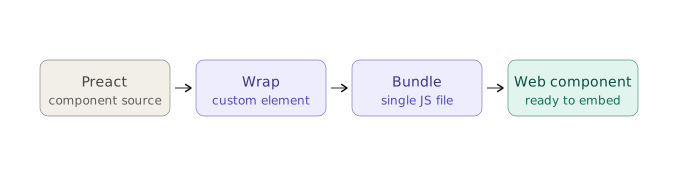
In this article I will go through the four main steps to build this.
1- Setting up the project
2- Provide the components
3- Bundle the project
4- Ship them to the users
The full source for everything below is on GitHub: raminious/preact-to-webcomponents.
Project: Contact us form
In this example I am going to build a simple web component with Preact. It is a contact form widget that users can place on their website to collect leads and feedback.
This kind of project is useful because normally the customer would need to write a lot of HTML, CSS, and JS to build and handle this. Here we give them one simple HTML tag instead.
We will also have a shared context system. That lets us pass global config into the widget, and it gives us a pattern we can reuse for more web components later.
We could build this with many JS libraries and frameworks. For this project I picked Preact over React because it is small, fast, and helps keep the final bundle size lower.
Setup
The setup is fairly easy. Below is our project structure. Most of the code lives in components, where we define
the lead form and its children. We keep the global zustand store in context, and hooks holds small helpers for
consuming that store.

Installation
I will start with the main libraries we need for the widget itself.
npm install preact preact-custom-element immer zustandLater, when we set up the bundler, we will install the build tools too.
Create global store
Here we create the store and the context provider.
I am not using plain Preact context to store the whole state, because plain context re-renders every consumer when the value changes. It also does not give us selectors out of the box.
Zustand solves that in a simple way. It is small, it has a vanilla store we can create outside the component tree, and each consumer only re-renders when the selected part changes.
I am also using immer with Zustand so state updates stay short and readable. We can write updates like state.counter += 1 and let immer handle the immutable update under the hood.
root.ts exports two things. createAppStore is a factory, and every call returns a fresh store. That matters because every widget instance should have its own state. AppContext is the plain Preact context we use to pass the store down.
AppContextProvider is the component we register as <app-root>. It creates the store once per mount with useRef and then provides it to the children. The useRef part matters, because without it a new store would be created on every re-render and the state would be lost.
import { createContext } from 'preact/compat'
import { immer } from 'zustand/middleware/immer'
import { createStore } from 'zustand/vanilla'

type UpdaterFunction = (state: AppState) => void

export interface AppState {
  authorization: string
  config: {
    baseApiUrl: string
  }
  counter: number
}

export interface Actions {
  update: (fn: UpdaterFunction) => void
  reset: () => void
}

export const createAppStore = (props: AppState) => {
  return createStore<AppState & Actions>()(
    immer((set) => ({
      ...props,
      update: (fn) => set(fn),
      // shallow-merge initial values back in; spread keeps the action
      // functions on the store intact.
      reset: () => set((state) => ({ ...state, ...props })),
    })),
  )
}

export type AppStore = ReturnType<typeof createAppStore>

interface AppContext {
  store: AppStore
}

export const AppContext = createContext<AppContext | null>(null)
Work with global context
Now that we have the provider, we need a clean way to read from the store inside child components. I wrote a small hook for that.
import { useContext } from 'preact/compat'
import { useStore } from 'zustand'

import { AppContext, AppState, Actions } from '../context/root'

type Selector<U> = (state: AppState & Actions) => U

export function useAppStore<U = Partial<AppState & Actions>>(selector: Selector<U>) {
  return useStore(useContext(AppContext)!.store, selector)
}
With this hook we can read and update the store from any child component:
import { useAppStore } from '../hooks/use-app-store'

export function MyComponent() {
  const baseApiUrl = useAppStore((state) => state.config.baseApiUrl)
  const update = useAppStore((state) => state.update)

  const handleClick = () => {
    update((state) => {
      state.counter += 1
    })
  }

  return <button onClick={handleClick}>Update Counter</button>
}
Create components
Most of the time, building this is just like writing a normal Preact or React component. Same hooks, same patterns.
But there is one important difference. You cannot pass callback functions from the host page through custom-element attributes, because attributes are strings. So instead of something like an onSuccess prop, the widget dispatches a DOM event and the host page listens for it.
I dispatch the event from the form element itself with bubbles: true and composed: true. That gives us two nice things:
- Listeners on
window,document, or the custom element itself all catch it. - The event still escapes if we later turn on shadow DOM (
composed: trueis what crosses the shadow boundary).
With that in mind, here's the contact form.
import { useState } from 'preact/hooks'
import { useAppStore } from '../hooks/use-app-store'

export function ContactForm() {
  const baseApiUrl = useAppStore((state) => state.config.baseApiUrl)
  const authorization = useAppStore((state) => state.authorization)
  const update = useAppStore((state) => state.update)

  const [email, setEmail] = useState('')
  const [message, setMessage] = useState('')

  const handleSubmit = async (event: Event) => {
    event.preventDefault()
    const form = event.currentTarget as HTMLFormElement

    fetch(`${baseApiUrl}/posts`, {
      method: 'POST',
      body: JSON.stringify({ email, message }),
      headers: {
        'Content-Type': 'application/json',
        ...(authorization ? { Authorization: authorization } : {}),
      },
    })
      .then((response) => response.json())
      .then(() => {
        form.dispatchEvent(
          new CustomEvent('pastel-form:contact-form:success', {
            bubbles: true,
            composed: true,
            detail: { data: { email, message } },
          }),
        )

        // sample global state update
        update((state) => {
          state.counter += 1
        })
      })
      .catch((error) => {
        form.dispatchEvent(
          new CustomEvent('pastel-form:contact-form:error', {
            bubbles: true,
            composed: true,
            detail: { error },
          }),
        )
      })
  }

  return (
    <form class="pastel-form" onSubmit={handleSubmit}>
      <label class="pastel-form__label">
        Email
        <input
          class="pastel-form__input"
          type="email"
          value={email}
          onInput={(e) => setEmail((e.target as HTMLInputElement).value)}
          required
        />
      </label>
      <label class="pastel-form__label">
        Message
        <textarea
          class="pastel-form__textarea"
          value={message}
          onInput={(e) => setMessage((e.target as HTMLTextAreaElement).value)}
          required
        />
      </label>

      <button class="pastel-form__button" type="submit">
        Send (Demo)
      </button>
    </form>
  )
}
Create webcomponents
There are a few tools for turning a component into a Web Component.
I am using preact-custom-element because it works well with Preact and keeps the setup simple. We just register the components and list the attributes they should observe. The third argument to register is that attribute list. If an attribute is not listed there, changing it from outside will not trigger an update.
import register from 'preact-custom-element'

import { AppContextProvider } from './components/AppContextProvider'
import { ContactForm } from './components/ContactForm'

import './styles.core.scss'

register(
  ContactForm,
  'contact-form',
  [],
  { shadow: false },
)

register(
  AppContextProvider,
  'app-root',
  ['authorization', 'api_url'],
  {
    shadow: true,
    mode: 'closed',
  },
)
A quick note about shadow DOM. <contact-form> uses light DOM, so the global stylesheet from styles.core.scss can style it and users can still override styles with normal CSS. <app-root> uses a closed shadow root, but in this repo it is only the provider shell, not the visual part of the widget. Shadow DOM gives isolation, but it also means more setup when you want to style real UI inside it.
One thing to think about carefully is where the provider lives and which element owns the shared state. In this repo, <app-root> is the place that receives the global attributes, and <contact-form> is the visual widget that sits under it.
Bundle
Now we need the bundler. I am using Rollup to create one IIFE bundle.
npm install -D \
  rollup \
  @rollup/plugin-typescript \
  @rollup/plugin-terser \
  @rollup/plugin-node-resolve \
  @rollup/plugin-commonjs \
  @rollup/plugin-alias \
  @rollup/plugin-replace \
  rollup-plugin-scss \
  sass-embedded \
  typescript \
  rimraf
The alias plugin is what makes this setup friendly for code that imports from react. It rewrites react and react-dom to preact/compat at build time, so code written for React can still bundle against Preact.
Now let me show the Rollup config we use for this project.
The goal here is simple. We want one small JS file and one CSS file that users can drop into any website. That is why I use the iife format. It runs directly in the browser without asking the host website to install anything else.
Each plugin in this config has one clear job:
aliasmaps React imports topreact/compatreplaceinjects the production value forprocess.env.NODE_ENVscsscompiles and minifies our styles into one CSS fileresolveandcommonjshelp Rollup understand package importstypescriptcompiles our TS and TSX filesterserminifies the final JS bundle
Here is the full config:
import typescript from '@rollup/plugin-typescript'
import terser from '@rollup/plugin-terser'
import resolve from '@rollup/plugin-node-resolve'
import commonjs from '@rollup/plugin-commonjs'
import alias from '@rollup/plugin-alias'
import replace from '@rollup/plugin-replace'
import scss from 'rollup-plugin-scss'
import sassEmbedded from 'sass-embedded'

export default [
  {
    plugins: [
      alias({
        entries: [
          { find: 'react', replacement: 'preact/compat' },
          { find: 'react-dom', replacement: 'preact/compat' },
        ],
      }),
      replace({
        preventAssignment: true,
        'process.env.NODE_ENV': JSON.stringify('production'),
      }),
      scss({
        fileName: 'pastel-form.min.css',
        sass: sassEmbedded,
        outputStyle: 'compressed',
        silenceDeprecations: ['legacy-js-api'],
      }),
      resolve(),
      commonjs(),
      typescript(),
      terser(),
    ],
    input: 'src/main.ts',
    output: {
      name: 'PastelForm',
      file: 'dist/pastel-form.min.js',
      format: 'iife',
      freeze: false,
      sourcemap: false,
    }
  },
]
This config takes src/main.ts as the entry point. From there, Rollup follows the imports, includes the components, the store, the styles, and finally writes everything into dist/.
I also like this setup because it stays easy to grow. If later you add more widgets, shared utilities, or more styles, you usually do not need to change the whole bundler. Most of the time you only add more code under src/ and keep the same pipeline.
Now we add the build scripts to package.json:
"scripts": {
  "clean": "rimraf dist",
  "build": "npm run clean && rollup --config --bundleConfigAsCjs",
  "dev": "rollup --config --bundleConfigAsCjs --watch"
}
And point unpkg at the bundle so CDN consumers get the right file:
"unpkg": "dist/pastel-form.min.js"After that, npm run build writes the bundled JS and CSS into dist/ as pastel-form.min.js and pastel-form.min.css.
Deliver
There are a few ways to ship the library. If versioning matters, and it usually does once real users start using it, the simplest option is to publish it on NPM and let people load it through a CDN like unpkg or jsDelivr. Both can use the unpkg field in package.json, so a tag like
<script src="https://unpkg.com/[email protected]/dist/pastel-form.min.js"></script>gives users a pinned version with no build step on their side. Publishing to NPM is outside the scope of this article, but there are many guides for that part.
If you want to keep it private, you can host the dist/ files on your own servers or on object storage like S3 or R2 behind a CDN and give users that URL. That gives you more control over caching and rollout, but you lose version pinning unless you include the version in the path yourself.
Usage
At the end, all we need is to load the bundled JS and CSS in the page and use the elements we registered earlier.
<app-root> is the provider element. It receives the global attributes and shares them with the widget inside it.
<contact-form> renders the contact form UI. In this repo, it is meant to be used inside <app-root>.
We can still override the theme with CSS variables:
<style>
  :root {
    --pastel-form-accent-color: orange;
    --pastel-form-accent-color-hover: red;
  }
</style>
We can also listen for the events dispatched from the widget. Because the events use bubbles: true and composed: true, a listener on window works just as well as one on the element itself:
window.addEventListener('pastel-form:contact-form:success', (e) => {
  // e.detail.data
})
Here is the full HTML example that shows how it fits together.
<!DOCTYPE html>
<html lang="en">
<head>
  <script src="pastel-form.min.js"></script>
  <link rel="stylesheet" href="pastel-form.min.css">

  <style>
    :root {
      --pastel-form-accent-color: #262626;
      --pastel-form-accent-color-hover: #000;
    }
  </style>
</head>

<body>
  <app-root
    authorization="my-token"
    api_url="https://api.myurl.com"
  >
    <contact-form></contact-form>
  </app-root>

  <script>
    window.addEventListener('pastel-form:contact-form:success', () => {
      toast('success', '✓ Message sent, thanks!')
    })

    window.addEventListener('pastel-form:contact-form:error', ({ detail }) => {
      toast('error', `✗ ${detail?.error?.message ?? 'Something went wrong'}`)
    })
  </script>
</body>
</html>Conclusion
This is a nice way to deliver a piece of UI and SDK to users without worrying too much about where or how they will use it. The widget is just a custom element. It can drop into a WordPress page, a React app, a Vue app, or a plain HTML file with the same simple install.
Inside, you still keep the full Preact experience: hooks, state, components, and a normal build setup.
The trade-offs are real. There are no callback props through attributes, you need to think carefully about where state lives, and you need to choose between shadow DOM and light DOM. But once you accept those limits, this pattern scales well. Every new widget is just another register(...) call in the same bundle.
Rarely, but worth it
A short note whenever I publish something new.
Plus one newsletter-only post each month.